Create or find a list
Find the Reading List tool in Canvas
Log in to Canvas and go to your unit of study's Canvas site. In the navigation panel on the left side of the screen select Reading List.
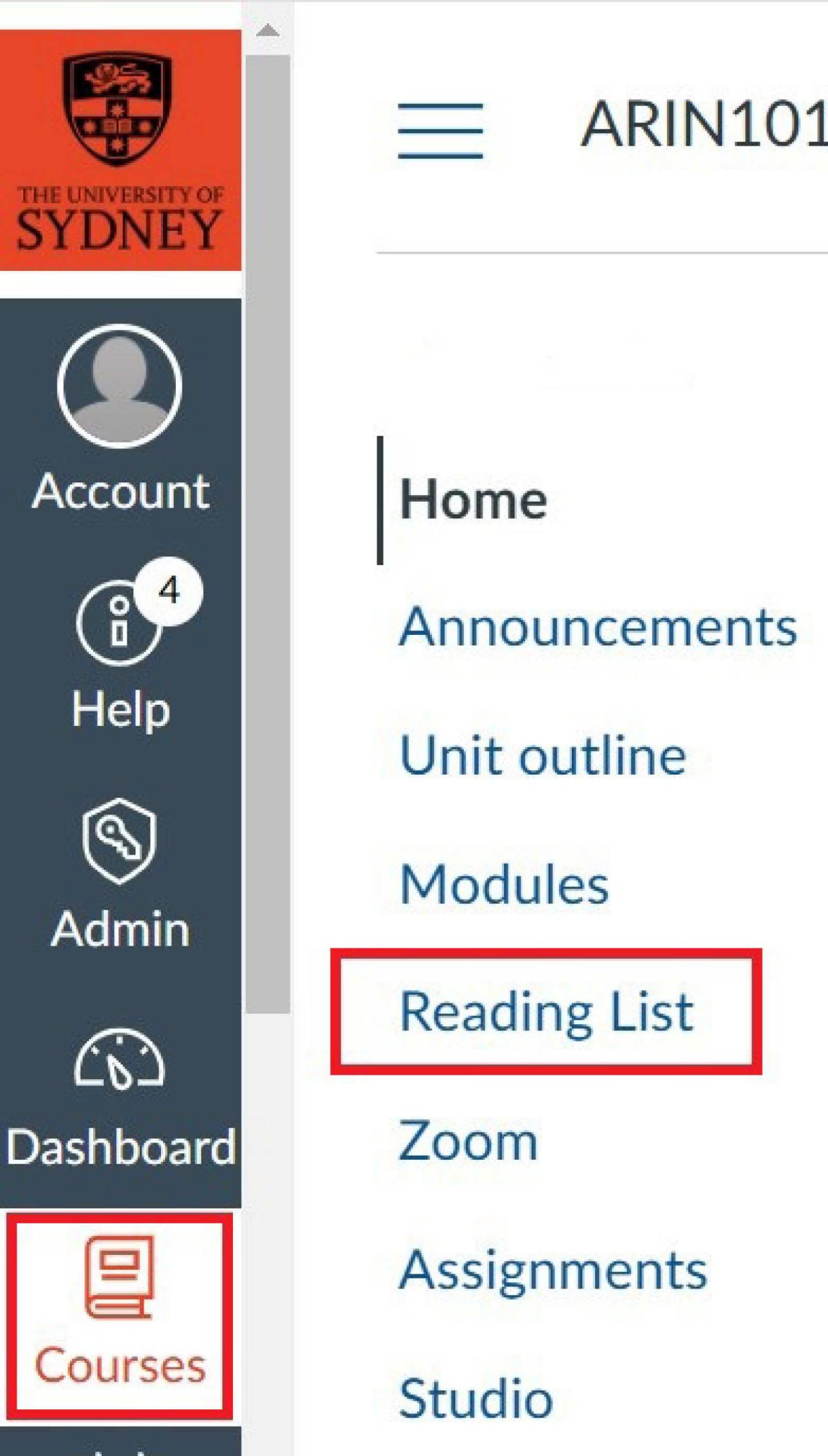
If there is an existing Reading List for your unit of study, it will be visible here.
If there is no existing list, you can create one yourself using the instructions below.
Create a new list
Click Create new list.

Enter the List name.
Under Link to course enter the unit of study code/s and click Next.

Under the Create sections heading choose a template for your Reading List.
Click Create list.

Duplicate an existing list
Reading Lists for the upcoming semester are duplicated by the Library a few weeks after the exam period of the preceding semester. Check your Canvas Reading List module to see if your list has already been copied.
If your list hasn't already been copied or you'd like to reuse a different list:
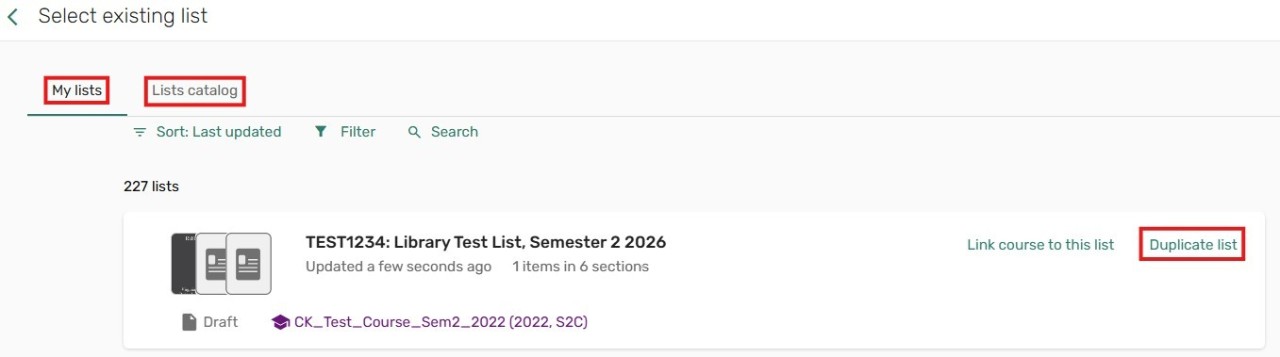
- In the Canvas Reading List module, click Select existing list.
- To use a list you were previously the owner of, find the list in the My lists tab. To view all reading lists, go to the Lists catalog tab. You can search for lists by title, course code, etc.
- Click Duplicate list to the right of the list you want to copy.
- Enter the List name. Under Link to course, select the unit/s of study the list is for.
- Click Create list.
Add collaborators
List owners can add colleagues as collaborators. Go to List info in the top tool bar.
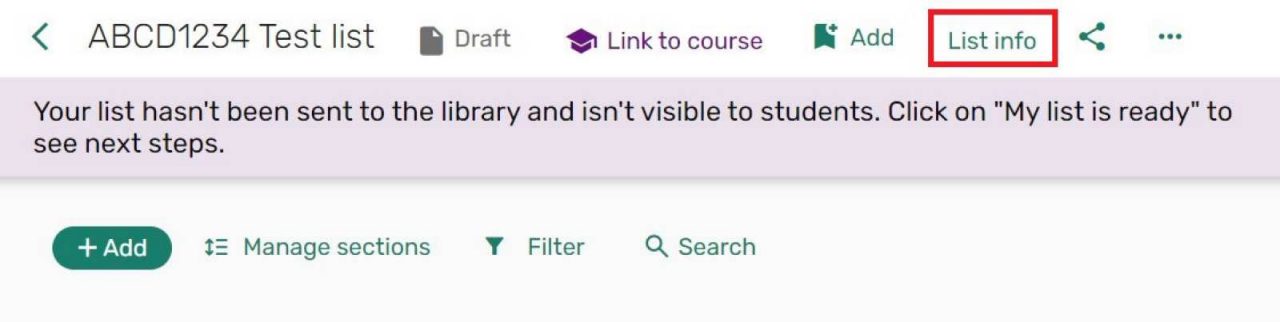
Click on Manage collaborators, then Add collaborators.
Search for the person you’d like to add and click on their name. Choose if you would like them to be a list owner or editor and click Save.
List owner can add, edit, remove items and sections, delete lists, and add and remove collaborators.
List editor can add, edit, remove items and sections only.

Create and move sections
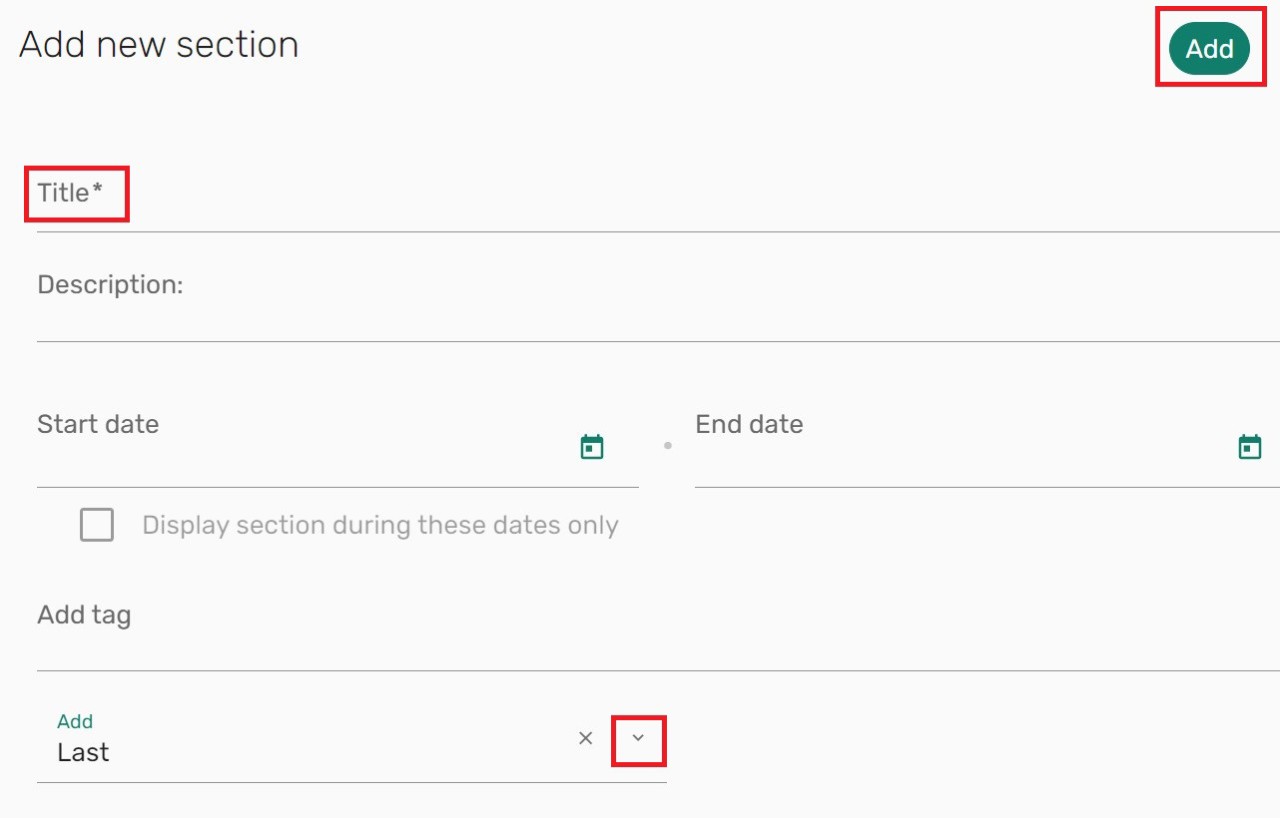
To create a new section within your list click Add then New section.
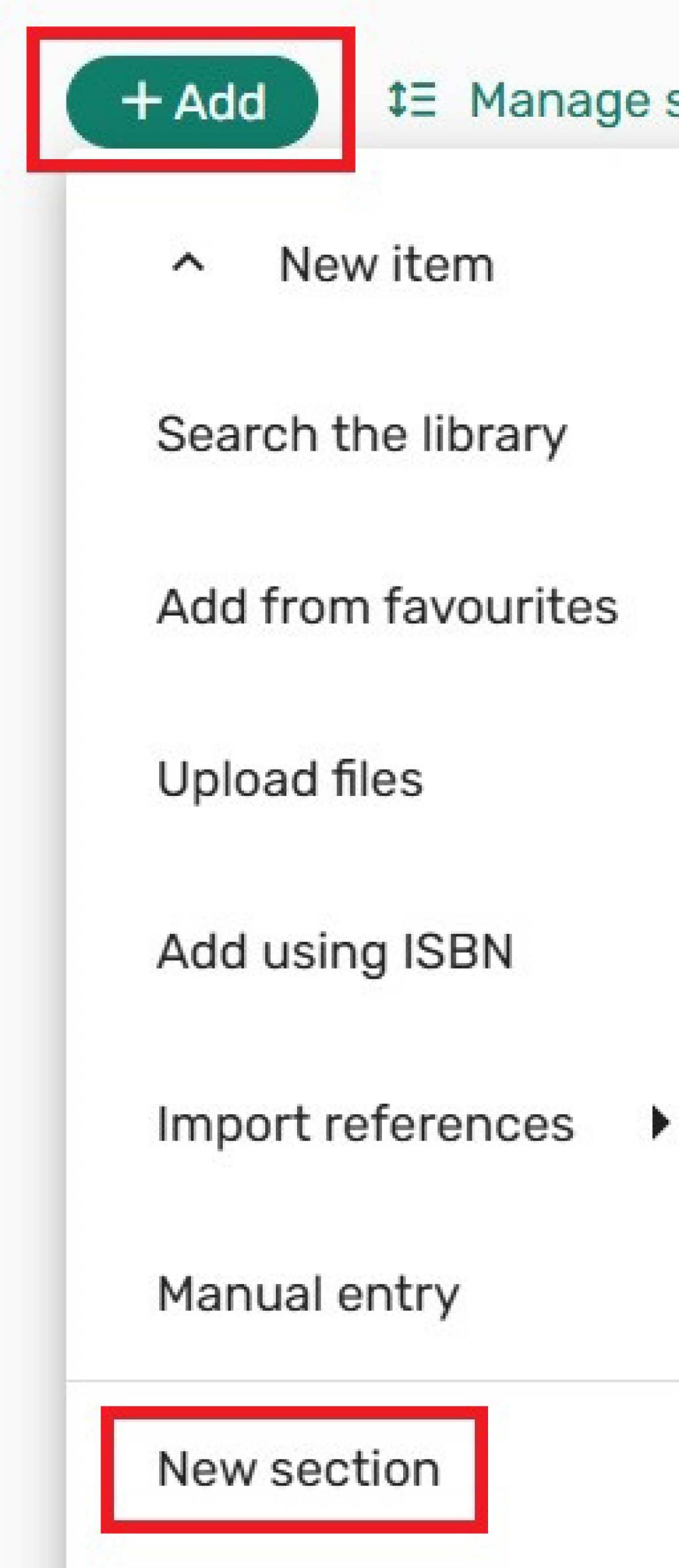
On the next screen enter the title of the section, choose where on the list you'd like to place it and click Add.
To change the order of your sections, minimise all the sections first by clicking on Manage sections.

Then drag the section to the desired location.
When you’ve finished moving sections, click on Manage items to expand the list again.

Contact
Contact the Library team for help with your Reading Lists.